Network Security Via Reverse Engineering of TCP Code:
The Transmission Control Protocol/Internet Protocol (TCP/IP ) suite is a very widely used technique that is employed to interconnect computing facilities in modern network environments. However, there exist several security vulnerabilities in the TCP specification and additional weaknesses in a number of widely-available implementations of TCP. These vulnerabilities may enable an intruder to attack TCP-based systems, enabling him/her to hijack a TCP connection or cause denial of service to legitimate users. The analysis of TCP code via a reverse engineering" technique called slicing to identify several of these vulnerabilities, especially those that are related to the TCP state-transition diagram.
Now here rather than telling how intrusion dectection works , i'm going to be writing a series of FAQ's about The Process :
1.1 What is a "network intrusion detection system (NIDS)"?
An intrusion is somebody (A.K.A. "hacker" or "cracker") attempting to break into or misuse your system. The word "misuse" is broad, and can reflect something severe as stealing confidential data to something minor such as misusing your email system for spam (though for many of us, that is a major issue!).
An "Intrusion Detection System (IDS)" is a system for detecting such intrusions. For the purposes of this FAQ, IDS can be broken down into the following categories:
network intrusion detection systems (NIDS) monitors packets on the network wire and attempts to discover if a hacker/cracker is attempting to break into a system (or cause a denial of service attack). A typical example is a system that watches for large number of TCP connection requests (SYN) to many different ports on a target machine, thus discovering if someone is attempting a TCP port scan. A NIDS may run either on the target machine who watches its own traffic (usually integrated with the stack and services themselves), or on an independent machine promiscuously watching all network traffic (hub, router, probe). Note that a "network" IDS monitors many machines, whereas the others monitor only a single machine (the one they are installed on).
system integrity verifiers (SIV) monitors system files to find when a intruder changes them (thereby leaving behind a backdoor). The most famous of such systems is "Tripwire". A SIV may watch other components as well, such as the Windows registry and chron configuration, in order to find well known signatures. It may also detect when a normal user somehow acquires root/administrator level privleges. Many existing products in this area should be considered more "tools" than complete "systems": i.e. something like "Tripwire" detects changes in critical system components, but doesn't generate real-time alerts upon an intrusion.
log file monitors (LFM) monitor log files generated by network services. In a similar manner to NIDS, these systems look for patterns in the log files that suggest an intruder is attacking. A typical example would be a parser for HTTP server log files that looking for intruders who try well-known security holes, such as the "phf" attack. Example: swatch
Deception systems (A.K.A. decoys, lures, fly-traps, honeypots) which contain pseudo-services whose goal is to emulate well-known holes in order to trap hackers. Also, simple tricks by renaming "administrator" account on NT, then setting up a dummy account with no rights by extensive auditing can be used.
1.2 Who is misusing the system?
There are two words to describe the intruder: hacker and cracker. A hacker is a generic term for a person who likes getting into things. The benign hacker is the person who likes to get into his/her own computer and understand how it works. The malicious hacker is the person who likes getting into other people's systems. The benign hackers wish that the media would stop bad-mouthing all hackers and use the term 'cracker' instead. Unfortunately, this is not likely to happen. In any event, the word used in this FAQ is 'intruder', to generically denote anybody trying to get into your systems.
Intruders can be classified into two categories:
Outsiders
Intruders from outside your network, and who may attack you external presence (deface web servers, forward spam through e-mail servers, etc.). They may also attempt to go around the firewall to attack machines on the internal network. Outside intruders may come from the Internet, dial-up lines, physical break-ins, or from partner (vendor, customer, reseller, etc.) network that is linked to your corporate network.
Insiders
Intruders that legitimately use your internal network. These include users who misuse privileges (such as the Social Security employee who marked someone as being dead because they didn't like that person) or who impersonate higher privileged users (such as using someone else's terminal). A frequently quoted statistic is that 80% of security breaches are committed by insiders.
There are several types of intruders Joy riders hack because they can. Vandals are intent on causing destruction or marking up your web-pages. Profiteers are intent on profiting from their enterprise, such as rigging the system to give them money or by stealing corporate data and selling it.
1.3 How do intruders get into systems?
The primary ways a intruder can get into a system:
Physical Intrusion If a intruders have physical access to a machine (i.e. they can use the keyboard or take apart the system), they will be able to get in. Techniques range from special privileges the console has, to the ability to physically take apart the system and remove the disk drive (and read/write it on another machine). Even BIOS protection is easy to bypass: virtually all BIOSes have backdoor passwords.
System Intrusion This type of hacking assumes the intruder already has a low-privilege user account on the system. If the system doesn't have the latest security patches, there is a good chance the intruder will be able to use a known exploit in order to gain additional administrative privileges.
Remote Intrusion This type of hacking involves a intruder who attempts to penetrate a system remotely across the network. The intruder begins with no special privileges. There are several forms of this hacking. For example, a intruder has a much more difficult time if there exists a firewall on between him/her and the victim machine.
Note that Network Intrusion Detection Systems are primarily concerned with Remote Intrusion.
1.4 Why can intruders get into systems?
Software always has bugs. System Administrators and Programmers can never track down and eliminate all possible holes. Intruders have only to find one hole to break in.
1.4.1 Software bugs
Software bugs are exploited in the server daemons, the client applications, the operating system, and the network stack. Software bugs can be classified in the following manner:
Buffer overflows: Almost all the security holes you read about in the press are due to this problem. A typical example is a programmer who sets aside 256 characters to hold a login username. Surely, the programmer thinks, nobody will ever have a name longer than that. But a hacker thinks, what happens if I enter in a false username longer than that? Where do the additional characters go? If they hackers do the job just right, they can send 300 characters, including code that will be executed by the server, and voila, they've broken in. Hackers find these bugs in several ways. First of all, the source code for a lot of services is available on the net. Hackers routinely look through this code searching for programs that have buffer overflow problems. Secondly, hackers may look at the programs themselves to see if such a problem exists, though reading assembly output is really difficult. Thirdly, hackers will examine every place the program has input and try to overflow it with random data. If the program crashes, there is a good chance that carefully constructed input will allow the hacker to break in. Note that this problem is common in programs written in C/C++, but rare in programs written in Java.
Unexpected combinations: Programs are usually constructed using many layers of code, including the underlying operating system as the bottom most layer. Intruders can often send input that is meaningless to one layer, but meaningful to another layer. The most common language for processing user input on the web is PERL. Programs written in PERL will usually send this input to other programs for further evaluation. A common hacking technique would be to enter something like "| mail < /etc/passwd". This gets executed because PERL asks the operating system to launch an additional program with that input. However, the operating system intercepts the pipe '|' character and launches the 'mail' program as well, which causes the password file to be emailed to the intruder.
Unhandled input: Most programs are written to handle valid input. Most programmers do not consider what happens when somebody enters input that doesn't match the specification.
Race conditions: Most systems today are "multitasking/multithreaded". This means that they can execute more than one program at a time. There is a danger if two programs need to access the same data at the same time. Imagine two programs, A and B, who need to modify the same file. In order to modify a file, each program must first read the file into memory, change the contents in memory, then copy the memory back out into the file. The race condition occurs when program A reads the file into memory, then makes the change. However, before A gets to write the file, program B steps in and does the full read/modify/write on the file. Now program A writes its copy back out to the file. Since program A started with a copy before B made its changes, all of B's changes will be lost. Since you need to get the sequence of events in just the right order, race conditions are very rare. Intruders usually have to tries thousands of time before they get it right, and hack into the system.
1.4.2 System configuration
System configuration bugs can be classified in the following manner:
Default configurations: Most systems are shipped to customers with default, easy-to-use configurations. Unfortunately, "easy-to-use" means "easy-to-break-in". Almost any UNIX or WinNT machine shipped to you can be hacked in easily.
Lazy administrators: A surprising number of machines are configured with an empty root/administrator password. This is because the administrator is too lazy to configure one right now and wants to get the machine up and running quickly with minimal fuss. Unfortunately, they never get around to fixing the password later, allowing intruders easy access. One of the first things a intruder will do on a network is to scan all machines for empty passwords.
Hole creation: Virtually all programs can be configured to run in a non-secure mode. Sometimes administrators will inadvertently open a hole on a machine. Most administration guides will suggest that administrators turn off everything that doesn't absolutely positively need to run on a machine in order to avoid accidental holes. Note that security auditing packages can usually find these holes and notify the administrator.
Trust relationships: Intruders often "island hop" through the network exploiting trust relationships. A network of machines trusting each other is only as secure as its weakest link.
1.4.3 Password cracking
This is a special category all to itself.
Really weak passwords: Most people use the names of themselves, their children, spouse/SO, pet, or car model as their password. Then there are the users who choose "password" or simply nothing. This gives a list of less than 30 possibilities that a intruder can type in for themselves.
Dictionary attacks: Failing the above attack, the intruder can next try a "dictionary attack". In this attack, the intruder will use a program that will try every possible word in the dictionary. Dictionary attacks can be done either by repeatedly logging into systems, or by collecting encrypted passwords and attempting to find a match by similarly encrypting all the passwords in the dictionary. Intruders usually have a copy of the English dictionary as well as foreign language dictionaries for this purpose. They all use additional dictionary-like databases, such as names (see above) and lists of common passwords.
Brute force attacks: Similar to a Dictionary attack, a intruder may try all possible combinations of characters. A short 4-letter password consisting of lower-case letters can be cracked in just a few minutes (roughly, half a million possible combinations). A long 7-character password consisting of upper and lower case, as well as numbers and punctuation (10 trillion combinations) can take months to crack assuming you can try a million combinations a second (in practice, a thousand combinations per second is more likely for a single machine).
1.4.4 Sniffing unsecured traffic
Shared medium: On traditional Ethernet, all you have to do is put a Sniffer on the wire to see all the traffic on a segment. This is getting more difficult now that most corporations are transitioning to switched Ethernet.
Server sniffing: However, on switched networks, if you can install a sniffing program on a server (especially one acting as a router), you can probably use that information to break into client machines and trusted machines as well. For example, you might not know a user's password, but sniffing a Telnet session when they log in will give you that password.
Remote sniffing: A large number of boxes come with RMON enabled and public community strings. While the bandwidth is really low (you can't sniff all the traffic), it presents interesting possibilities.
1.4.5 Design flaws
Even if a software implementation is completely correct according to the design, there still may be bugs in the design itself that leads to intrusions.
TCP/IP protocol flaws: The TCP/IP protocool was designed before we had much experience with the wide-scale hacking we see today. As a result, there are a number of design flaws that lead to possible security problems. Some examples include smurf attacks, ICMP Unreachable disconnects, IP spoofing, and SYN floods. The biggest problem is that the IP protocol itself is very "trusting": hackers are free to forge and change IP data with impunity. IPsec (IP security) has been designed to overcome many of these flaws, but it is not yet widely used.
UNIX design flaws: There are number of inherent flaws in the UNIX operating system that frequently lead to intrusions. The chief problem is the access control system, where only 'root' is granted administrative rights.
1.5 How do intruders get passwords?
Intruders get passwords in the following ways:
Clear-text sniffing: A number of protocols (Telnet, FTP, HTTP Basic) use clear-text passwords, meaning that they are not encrypted as the go over the wire between the client and the server. A intruder with a protocol analyzer can watch the wire looking for such passwords. No further effort is needed; the intruder can start immediately using those passwords to log in.
Encrypted sniffing: Most protocols, however, use some sort of encryption on the passwords. In these cases, the intruder will need to carry out a Dictionary or Brute Force attack on the password in order to attempt decryption. Note that you still don't know about the intruder's presence, as he/she has been completely passive and has not transmitted anything on the wire. Password cracking does not require anything to be sent on the wire as intruder's own machine is being used to authenticate your password.
Replay attack: In some cases, intruders do not need to decrypt the password. They can use the encrypted form instead in order to login to systems. This usually requires reprogramming their client software in order to make use of the encrypted password.
Password file stealing: The entire user database is usually stored in a single file on the disk. In UNIX, this file is /etc/passwd (or some mirror of that file), and under WinNT, this is the SAM file. Either way, once a intruder gets hold of this file, he/she can run cracking programs (described above) in order to find some weak passwords within the file.
Observation: One of the traditional problems in password security is that passwords must be long and difficult to guess (in order to make Dictionary and Brute Force cracks unreasonably difficult). However, such passwords are often difficult to remember, so users write them down somewhere. Intruders can often search a persons work site in order to find passwords written on little pieces of paper (usually under the keyboard). Intruders can also train themselves to watch typed in passwords behind a user's back.
Social Engineering: A common (successful) technique is to simply call the user and say "Hi, this is Bob from MIS. We're trying to track down some problems on the network and they appear to be coming from your machine. What password are you using?" Many users will give up their password in this situation. (Most corporations have a policy where they tell users to never give out their password, even to their own MIS departments, but this technique is still successful. One easy way around this is for MIS to call the new employee 6-months have being hired and ask for their password, then criticize them for giving it to them in a manner they will not forget :-)
1.6 What is a typical intrusion scenario?
A typical scenario might be:
Step 1: outside reconnaissance The intruder will find out as much as possible without actually giving themselves away. They will do this by finding public information or appearing as a normal user. In this stage, you really can't detect them. The intruder will do a 'whois' lookup to find as much information as possible about your network as registered along with your Domain Name (such as foobar.com. The intruder might walk through your DNS tables (using 'nslookup', 'dig', or other utilities to do domain transfers) to find the names of your machines. The intruder will browse other public information, such as your public web sites and anonymous FTP sites. The intruder might search news articles and press releases about your company.
Step 2: inside reconnaisance The intruder uses more invasive techniques to scan for information, but still doesn't do anything harmful. They might walk through all your web pages and look for CGI scripts (CGI scripts are often easily hacked). They might do a 'ping' sweep in order to see which machines are alive. They might do a UDP/TCP scan/strobe on target machines in order to see what services are available. They'll run utilities like 'rcpinfo', 'showmount', 'snmpwalk', etc. in order to see what's available. At this point, the intruder has done 'normal' activity on the network and has not done anything that can be classified as an intrusion. At this point, a NIDS will be able to tell you that "somebody is checking door handles", but nobody has actually tried to open a door yet.
Step 3: exploit The intruder crosses the line and starts exploiting possible holes in the target machines. The intruder may attempt to compromise a CGI script by sending shell commands in input fields. The intruder might attempt to exploit well-known buffer-overrun holes by sending large amounts of data. The intruder may start checking for login accounts with easily guessable (or empty) passwords. The hacker may go through several stages of exploits. For example, if the hacker was able to access a user account, they will now attempt further exploits in order to get root/admin access.
Step 4: foot hold At this stage, the hacker has successfully gained a foot hold in your network by hacking into a machine. The intruder's main goal is to hide evidence of the attacks (doctoring the audit trail and log files) and make sure they can get back in again. They may install 'toolkits' that give them access, replace existing services with their own Trojan horses that have backdoor passwords, or create their own user accounts. System Integrity Verifiers (SIVs) can often detect an intruder at this point by noting the changed system files. The hacker will then use the system as a stepping stone to other systems, since most networks have fewer defenses from inside attacks.
Step 5: profit The intruder takes advantage of their status to steal confidential data, misuse system resources (i.e. stage attacks at other sites from your site), or deface web pages.
Another scenario starts differently. Rather than attack a specific site, and intruder might simply scan random internet addresses looking for a specific hole. For example, an intruder may attempt to scan the entire Internet for machines that have the SendMail DEBUG hole. They simply exploit such machines that they find. They don't target you directly, and they really won't even know who you are. (This is known as a 'birthday attack'; given a list of well-known security holes and a list of IP addresses, there is a good chance that there exists some machine somewhere that has one of those holes)
1.7 What are some common "intrusion signatures"?
There are three types of attacks:
reconnaisance These include ping sweeps, DNS zone transfers, e-mail recons, TCP or UDP port scans, and possibly indexing of public web servers to find cgi holes.
exploits Intruders will take advantage of hidden features or bugs to gain access to the system.
denial-of-service (DoS) attacks Where the intruder attempts to crash a service (or the machine), overload network links, overloaded the CPU, or fill up the disk. The intruder is not trying to gain information, but to simply act as a vandal to prevent you from making use of your machine.
1.8 What are some common exploits?
1.8.1 CGI scripts
CGI programs are notoriously insecure. Typical security holes include passing tainted input directly to the command shell via the use of shell metacharacters, using hidden variables specifying any filename on the system, and otherwise revealing more about the system than is good. The most well-known CGI bug is the 'phf' library shipped with NCSA httpd. The 'phf' library is supposed to allow server-parsed HTML, but can be exploited to give back any file. Other well-known CGI scripts that an intruder might attempt to exploit are: TextCounter, GuestBook, EWS, info2www, Count.cgi, handler, webdist.cgi, php.cgi, files.pl, nph-test-cgi, nph-publish, AnyForm, FormMail. If you see somebody trying to access one or all of these CGI scripts (and you don't use them), then it is clear indication of an intrusion attempt (assuming you don't have a version installed that you actually want to use).
1.8.2 Web server attacks
Beyond the execution of CGI programs, web servers have other possible holes. A large number of self-written web servers (include IIS 1.0 and NetWare 2.x) have hole whereby a file name can include a series of "../" in the path name to move elsewhere in the file system, getting any file. Another common bug is buffer overflow in the request field or in one of the other HTTP fields.
Web server often have bugs related to their interaction with the underlying operating system. An old hole in Microsoft IIS have been dealing with the fact that files have two names, a long filename and a short 8.3 hashed equivalent that could sometimes be accessed bypassing permissions. NTFS (the new file system) has a feature called "alternate data streams" that is similar to the Macintosh data and resource forks. You could access the file through its stream name by appending "::$DATA" in order to see a script rather than run it.
Servers have long had problems with URLs. For example, the "death by a thousand slashes" problem in older Apache would cause huge CPU loads as it tried to process each directory in a thousand slash URL.
1.8.3 Web browser attacks
It seems that all of Microsoft's and Netscape's web browsers have security holes (though, of course, the latest ones never have any that we know about -- yet). This includes both URL, HTTP, HTML, JavaScript, Frames, Java, and ActiveX attacks.
URL fields can cause a buffer overflow condition, either as it is parsed in the HTTP header, as it is displayed on the screen, or processed in some form (such as saved in the cache history). Also, an old bug with Internet Explorer allowed interaction with a bug whereby the browser would execute .LNK or .URL commands.
HTTP headers can be used to exploit bugs because some fields are passed to functions that expect only certain information.
HTML can be often exploited, such as the MIME-type overflow in Netscape Communicator's
Copy@Rights

My © Logo
Monday, February 04, 2008

Tuesday, June 12, 2007
Check The Orkut Scraps without logging in !!!
It all began on a lazy afternoon , when i came across this news that orkut can be hacked :P I started to do get some information on this , and soon found out the thing . Then i thought that, i will build a small application which can do so. Thanks to the support by few friends online and along with that my small dwelling flash i have made a small application that allows you to read ORKUT scraps just by knowing the UID ( which is shown in the scrap book , as shown in image below ).
This thing mainly works because of a thing that is at core doing the act.
Here's the Screenshot of the THING.
To know more details about how this thing came about ...you know whom to contact.
If you need my app , just mail me : ajaykumar127@gmail.com with subject "NEED ORKUT Scrap Viewer" .I'll get back to you.
regards...
ajay
Tuesday, March 27, 2007
 A typical 80 core processor
 A typical Motherboard socket for the 80 core processor
What's cool: Performing 1 Trillion calcs per second, the chip could do the same number crunching that 10 years ago took up 2,000 square feet of machinery to do. Instead of the half-megawatt of juice, it could take as little as 62 watts. The chips has 80 cores.
What sucks?: Five years, at least, till these are available. No x86 architecture version yet, even in prototype. And optimizing programs that to take advantage of eighty cores is still a very hard thing to do. Multiple core processing is still best for mass rote operations like those involving math and video.
Intel's researchers have produced an 80-core chip that uses less energy than a quad-core processor and has teraflop performance capabilities.
Researchers have built the prototype to study how best to make that many cores communicate with each other. They're also studying new designs for cores and new architectural techniques, according to Manny Vara, a technology strategist with Intel's R&D labs. The chip is just for research purposes and lacks some necessary functionality at this point, but Vara says Intel will be able to produce a chip with 80 cores in five to eight years.
The chip is being called the Tera-Scale Teraflop Prototype. Intel is planning on releasing specifics about the research project at the 2007 International Solid State Circuits Conference in early February.
Since dual-core and quad-core chips were just introduced to the market in the past year, looking forward to an 80-core chip is a major departure from the expected natural progression in microprocessors.
This is being done as a test, The scientists came up with all these different ideas and there is a need to test them on a piece of silicon. The only thing is about the uncertainity regarding if it works till a working model is built and then tested the heck out of it.
The 80-core chip uses less than 100 watts of energy; a dual-core chip uses 60 to 70 watts and a quad-core uses 105 to 130 watts. Of course the numbers for the 80-core chip could be affected by the fact that it's lacking some functionality, but it's still a significant accomplishment.
I can call this as Intel's research project thus by far "revolutionary."

It showcases a focus on power efficiency and keeping things within a power and thermal envelope, they recognize that they can't generate any more heat or pull more power or they'll just become power hogs. With that large a number of cores, it's significant they can get it down below 100 watts. So this is pretty impressive. Real impressive.
They're different kinds of cores, and energy efficiency is a major part of the research project. If you look at it, by the time you put dozens of cores on a chip, they won't be the same kind that you can put three or four on a chip today. The new ones will be much simpler. You break the core's tasks into pieces and each task can be assigned to a core. Even if the cores are simpler and slower, you have a lot more of them so you have more performance.
Here i note that the power efficiency lies in the new, simpler cores.
Think more-complex four cores compared to simpler 80 cores. Each of those four cores can do more individually than one of the 80,But with an 8-core chip you will get a lot more performance and lower power because you have a lot of them running at lower speed. You're only using the cores you need. It's performance on demand. If you need more performance, it wakes up more cores, and when you're done, they go back to sleep."
With that many cores, Intel is able to design what is called "core hopping." If one part of the chip gets hot, the work that those particular cores are doing is moved to other cores on another part of the chip. That, will lower the heat being generated.
This's definitely exciting, as they're pushing the boundaries out in terms of how many cores they can squeeze onto a chip. It's about the horizontal scalability of cores on a single chip. They're relatively dumb and unsophisticated cores, but the experiment is how can they do it. How many can they pack in and still work together and communicate with each other?
Part of the challenge with building a chip with so many cores has been to design a communication network so that they all can communicate with each other.
Handling that much network traffic has been quite a task, and the chip will be just slightly larger than the average chip today. What they are doing is designing a network inside the chip. Today, you hear about high-performance computing and they have these big, fat super-powerful servers and they're all networked together. They are trying to basically do that, but on a chip. How do you bring a real network inside a chip so all the cores can talk to each other?.
At work they are quite literally creating a network mesh to let each little core communicate with the other cores and the rest of the system, the cores will want to know what the other cores will doing so they don't fight.
While it may take five to eight years to come out with a working 80-core chip, IT managers might start watching for what he calls "different flavors" of quad-core chips. Maybe you'll have interim chips where they have more complex cores along with simpler cores, too.
The bottom line: Congrats on the teraflop chip, Intel, but wake us up when this baby is for sale.
The Verdict: Vaporous CPU,solid PR move by Intel.
ajay.
Wednesday, March 14, 2007
How Does Bit Torrent Work ?
BitTorrent is the name of a client application for the torrent peer-to-peer (P2P) file distribution protocol. created by programmer Bram Cohen. BitTorrent is designed to widely distribute large amounts of data without incurring the corresponding consumption in server and bandwidth resources (and typically, monetary fees attracted as a result of that).
The original BitTorrent application is written in Python and its source code has been released under the BitTorrent Open Source License (a modified version of the Jabber Open Source License), as of version 4.0. The name "BitTorrent" refers to the distribution protocol, the original client application, and the .torrent file type.
The bittorrent protocol breaks the file(s) down into smaller fragments, typically a quarter of a megabyte (256 KB) in size. Peers download missing fragments from each other and upload those that they already have to peers that request them. The protocol is 'smart' enough to choose the peer with the best network connections for the fragments that it's requesting.
To increase the overall efficiency of the swarm (the ad-hoc P2P network temporarily created to distribute a particular file), the bittorrent clients request from their peers the fragments that are most rare; in other words, the fragments that are available on the least number of peers, making most fragments available widely across many machines and avoiding bottlenecks.
The file fragments are not usually downloaded in sequential order and need to be reassembled by the receiving machine. It is important to note that clients start uploading fragments to their peers before the entire file is downloaded.
Sharing by each peer therefore begins when the first complete segment is downloaded and can begin to be uploaded if another peer requests it. This scheme is particularly useful for trading large files such as videos and operating systems. This is contrasted with conventional file serving where high demand can lead to saturation of the host's resources as the consumption of bandwidth to transfer the file to many requesting downloaders surges.
With BitTorrent, high demand can actually increase throughput as more bandwidth and additional “seeds” of the file become available to the group. Cohen claims that for very popular files, BitTorrent can support about a thousand times as many downloads as HTTP.
BitTorrent-etiquette
Because BitTorrent relies on the upstream bandwidth of its users — and the more users, the more aggregate bandwidth is available for sharing the files — it is considered good etiquette to leave one's BitTorrent client open after downloading has completed so that others may continue to gain from the file that has been distributed.
It is not clear, however, how long one should leave their client open after downloading has finished. Many clients report the byte traffic upstream as well as down, so the user can see how much they have contributed back to the network. Some clients also report the "share ratio", a number relating the amount of data uploaded to the amount downloaded. It is generally considered good form to at least share back the equivalent amount of traffic as the original file size.
It is worth noting that the requirement of a "1.00" share ratio (uploading as much data as you have downloaded) is rather hotly contested given its relative impossibility to achieve for every person. On any given torrent, the best possible outcome is the original seeder with an infinite ratio (having only uploaded data and never downloaded any data), a number of peers with 1.00 ratios (having downloaded the file, uploaded just as much data, and then promptly logged off), and two users with a .50 ratio (the last two having each downloaded a separate half of the file and then shared their half with the other). This is highly unlikely to be achieved due to the very small chance of the last two peers downloading completely opposite halves and finishing just as the last seeder logged off and the fact that not all people will upload the same amount of data they downloaded as some will upload less and others will upload more. Ultimately, a perfect torrent would leave two end users with only a .50 ratio for the torrent, which means every user would have to provide new content at least equal to the portion of data they did not get to upload in the last torrent to maintain an overall ratio of 1.00.
While it's highly unlikely that all users who download a given torrent will achieve a 1.0 ratio on it (because the net ratio of all users is 1.0, if any user uploads past 1.0 some other user will have to sustain a lower ratio), it is more of a guideline to encourage the average upstream of a given network. Some networks, for example, prevent access to new torrents for the first 24-48 hours that the torrent is active to people with overall ratios of less than 1.0 and a certain amount of data uploaded.
The amount of time the client is left open may be more important than the amount of traffic contributed, since new users attempting to download a file will first need to find peers hosting the file.
Many advanced trackers now track statistics such as how many seeders and downloaders were on a torrent at the time of a user's disconnect as many consider this information more important than just the user's ratio of downloaded/uploaded.
For any more clarifications and doubts do mail me at : ajaykumar127@gmail.com
regards..
ajay
Wednesday, January 31, 2007
The Day Vista came onto my PC From the core to the cosmetic, there's a lot to like in Vista.
It was not so long that i saw my new vista coming back to life.
All i remember is it was a lazy afternoon in the mid of my holidays after the 5th
semester @ college , and it's like this new thing is just come to my mind. So i decided to give it a try .As you might have seen the screen shot above from my desktop , i hereby want to write say about 10 features which i liked in Vista the most , here they go :
Top 10 Favorite New Features
1. Improved security. Running as a standard user with limited permissions is finally practical. With User Account Control, even administrators operate with reduced-privilege credentials and have to verify attempts to "escalate"—in other words, to execute commands that could expose the OS to danger.
 |
2. New Start menu. With integrated search, you can type in a path—such as C:\Users\John—to launch Windows Explorer there, or simply start typing in a program or filename.
|
3. Internet Explorer 7. It may not be as good as Firefox or Opera, but it's a big improvement over IE6. Sure, we groused about the lack of tabs—but they're finally here.
|
4. New Windows Explorer. Explorer makes file navigation easier, with breadcrumbs that let you jump to a specific level in the directory hierarchy, integrated search, live icons that show both a visual preview of a document and the app that it opens in, and buttons that make it easy to perform common context-appropriate tasks.
|
5 .Live views of application windows. Press Windows-Tab to get this "Flip 3D" view, or Alt-Tab for a 2D view. Either way, task switching is clearer.
6. Faster, image-based installation process.7. Improved backup, including full-disk imaging.
8. Ad hoc collaboration with Windows Meeting Space.
9. Mobility Center, it's the Best bet!!
10. New Reliability and Performance Monitor, Task Scheduler, and Event Logs
so just go and grab you copy!!!!
Tuesday, October 24, 2006

Optical-camouflage technology developed at the University of Tokyo
This seems perfectly believable when you're reading about a fictional world filled with witches, wizards and centuries-old magic; but in the real world, such a garment would be impossible, right? Not so fast. With optical-camouflage technology developed by scientists at the University of Tokyo, the invisibility cloak is already a reality.
Optical camouflage delivers a similar experience to Harry Potter's invisibility cloak, but using it requires a slightly more complicated arrangement. First, the person who wants to be invisible (let's call her Person A) dons a garment that resembles a hooded raincoat. The garment is made of a special material that we'll examine more closely in a moment. Next, an observer (Person B) stands before Person A at a specific location. At that location, instead of seeing Person A wearing a hooded raincoat, Person B sees right through the cloak, making Person A appear to be invisible. The photograph on the right below shows you what Person B would see. If Person B were viewing from a slightly different location, he would simply see Person A wearing a silver garment (left photograph below).

So What is Optical Camouflage?
Optical camouflage is a kind of active camouflage.
This idea is very simple. If you project background image onto the masked object, you can observe the masked object just as if it were virtually transparent.
This shows the principle of the optical camouflage using X'tal Vision. You can select camouflaged object to cover with retroreflector. Moreover, to project a stereoscopic image, the observer looks at the masking object more transparent.
Optical camouflage can be applied for a real scene. In the case of a real scene, a photograph of the scene is taken from the operatorfs viewpoint, and this photograph is projected to exactly the same place as the original. Actually, applying HMP-based optical camouflage to a real scene requires image-based rendering techniques.

though this technology appears as a remarkable invention this can easily misused.however we all are looking forward to buy this piece of clothing.......
regards..
ajay
Sunday, October 22, 2006
War of Web Browsers
By now, we know that many of you are au courant with the uber-browsers available. Which is the best beta browser to choose is still a question mark.
Version 7.0 of internet explorer has just been unveiled by Microsoft Corp. for Windows XP and boasts of enhanced security features, making everyday tasks easier.
Talking about IE 7, Dean Hachamovitch, general manager, Internet Explorer team, Microsoft, said, "We listened carefully to our customers, and are delivering a safer browser that makes the tasks they do every day much easier."
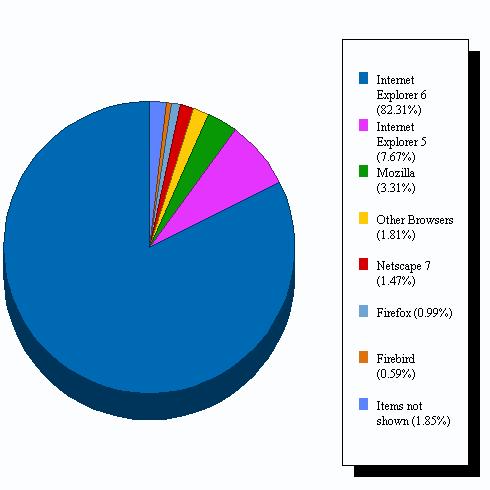
The security framework of the new explorer has been overhauled, and as a result of these enhancements, the browser will be a stand-alone application, rather than integrated with the Windows shell, and it will no longer be capable of acting as a file browser.
IE7 in Windows Vista contains additional security measures, most significantly ‘Protected Mode’, whereby the browser runs in a sandbox. As such, it can write to only the Temporary Internet Files folder and cannot install start-up programs or change any configuration of the operating system without communicating through a broker process. This increases the security of the system considerably.
The ‘Protected Mode’ operation will not be included in the Windows XP version of Internet Explorer 7, as it relies on technologies not found on systems before Vista. It also supports the Parental Controls and Network Diagnostics features which are unique to Vista.
The security level of IE7 is vaunted to be high, but other browsers like Firefox, Safari, Netscape and Opera too vaunt of additional features and better security.
Mozilla Firefox, a free open source, cross-platform, graphical web browser developed by the Mozilla Corporation and hundreds of volunteers, has a spontaneous interface and blocks viruses, spyware, and popup ads.
The main features included with Firefox are tabbed browsing, incremental find, live bookmarking, a customizable download manager and a built-in search toolbar.
The new version of Firefox boasts of automatically upgrading the latest security and feature updates.
Safari, on the other hand, is a web browser developed by Apple Computer, Inc. and is available as part of Mac OS X. It was included as the default browser in Mac OS X v10.3 (Panther) and is the only browser bundled with Mac OS X v10.4 (Tiger).
Safari 2.0.4, the latest version, was released on June 27, 2006, and is packed with Apple's brushed metal user interface and has a bookmark management scheme that functions like the iTunes jukebox software. It also integrates Apple's QuickTime multimedia technology and features a tabbed-browsing interface similar to that of Firefox and Opera. The browser also includes an integrated pop-up ad blocker and a configurable image blocker.
Opera 9, developed by Opera Software, is the latest version unmasked on September 21, 2006. There are several new features in Opera 9. The most important ones are: Simple BitTorrent client, targeted towards novice users, content blocker (also known as AdBlock), thumbnail preview of tabs, site specific preferences (pop-up blocking, cookies, scripts, user style sheets, user-agent masking), the ability to create search engines from a textfield, improved rich text editing and redefined default hot keys to be more like Internet Explorer.
Netscape Communications Corporation(commonly known as Netscape), an American computer services company, best known for its web browser, was once dominant in terms of usage share, but lost most of its share to Internet Explorer during the first browser war. As of 2006, the usage share of Netscape browsers is under 1% and falling.
The company existed only from 1994 to 2003, latterly as a subsidiary of AOL, but the Netscape brand is still in use. In June 2006, Netscape redesigned their website to a totally different format which was similar to Digg. Users can vote for which stories are to be included on the front page, and may comment on them as well. Netscape's market share had been declining for over a year at the time of the change-over.
The current version of Netscape was released to mixed reactions. Some users really like that users had more participation ability, while others found the pages to be harder to navigate and not as structured. In fact, soon after the release of the new site, a story entitled ‘Netscape's Blunder’ was the top rated story.
As of July 2006, estimates suggest that Firefox's usage share is around 12% of overall browser usage, with its highest usage in Germany (about 39%). The usage data gives Opera's overall global share of the browser market as being between 0.5% and 1.0%, although Opera's usage share is over 11% in Ukraine, over 8% in Russia, over 7% in Poland and over 6% in Lithuania.
Safari’s global share has been climbing ever since its release, but is still below 5%.
The adoption rate of Internet Explorer seems to be closely related to that of Microsoft Windows, as it is the default web browser that comes with Windows. Since the integration of Internet Explorer 2.0 with Windows 95 OSR 1 in 1996, and especially after version 4.0's release, the adoption was greatly accelerated: from below 20% in 1996 to about 40% in 1998 and over 80% in 2000.
Internet Explorer had almost completely superseded its main rival Netscape and dominated the market.
After having fought and won the browser wars of the late 1990s, Internet Explorer began to see its usage share shrink. Having attained a peak of about 96% in 2002, it has since been in a steady decline, likely due to the rapid adoption of Mozilla Firefox, which statistics indicate is the current most significant competitor.
Nevertheless, Internet Explorer remains the dominant web browser, with a global usage share of around 85%. Usage is higher in Asia and lower in Europe.
regards..
ajay
Tuesday, September 12, 2006
Do you Want secure your to secure Windows2000 / XP to the max....then follow these basic steps [:)]
IMPORTANT INFORMATION REGARDING WINDOWSXP SP2 Some security softwares have had problems with Service Pack 2, like for example ZoneAlarm and some antivirus software. Also, there has been other issues regarding the SP2, I have personally found out that after installing it my computer stops working properly, I have not yet managed to solve the situation. Also, the SP2 has some changes regarding the settings of Internet Explorer, Windows ICF and other issues, so this page is not updated to meet SP2 details for now. My suggestion regarding SP2 is, that you should backup and try it out. If it works, fine, Microsoft has fixed some major security issues with it so you likely safe enought for now on default install on SP2 if you follow its security center guides. If you cannot install SP2 or get it working, then restore the old WindowsXP and use the settings and tips in this page as it is. Try later to install SP2 when Microsoft either fixes its bugs or we can discover some way to counter them.
These settings can be used with both Windows 2000 and WindowsXP to *really* secure the system and also boost up its performance. Depending upon your version and whether it is Win2k or XP, you might notice that some of the features/options arent there. Just skip and move on until you hit something that IS on YOUR Windows2k/XP. The "best" option of all is to have WindowsXP professional, since the screenshots are from WindowsXP professional. However, please notice that you can access some of the features in WindowsXP professional even if you are installing home edition, by booting into "Safe Mode" some time.
WindowsXP offers pretty good security features, but only if you know how to use them. By default, WindowsXP is clumsy and has many possible security holes due to its poor default settings. If you use WindowsXP pro, you can really make your computer your fortress against almost any invader. The build-in EFS (Encrypting File System with NTFS), strong authentication methods, firewall, etc. give you good tools for it. Home edition does not have all these features but you can always implement your own according to these guidelines. These principles are designed for ONLY single-user "home" computers (standalone), NOT computers in, lets say, corporate networks! On standalone computers you can and should fill all holes possible but in corporate enviroment, the whole point is to allow computers to be used via corporate networks or intranet. You can still take suggestions and clues here and implement them properly if you are installing or using Windows2k/XP in corporate enviroment or are using multiple user accounts.
Please remember!
As sayed earlier, these settings work like dream for me and most 2k / XP users too, but not with all of them. The best option would be to either make and "image" of your C-drive or write down your original settings before you start implementing these settings. The problems that might occur are mostly related to network connections / internet access. You can also troubleshoot the problems using the Windows Help and Support while going throught the settings to see what needs perhaps to be enabled. And if the worst happens...And you just cant revert the changes you made, run "repair install" using your Win2k/XP cdrom. It will keep all the programs etc. but restore regular settings. Remember to update and patch your software after this "repair install".
When you do some alterations to settings, make sure you exit that window by pressing OK or YES keys. If you simply close the window clicking from the X in the corner of it or press CANCEL, the alterations you just made will NOT become affective!
Two good links related to securing and tweaking Windows 2000 and Windows XP
Black Viper's guide on Windows 2000 and XP services
NSA security guides on securing WindowsNT, 2000 and XP (in corporate/network enviroment)
Before installing Windows 2000 / XP
-> Physically disconnect from the net!
- -> Do NOT plug the network cable/internet connection!
-> Backup all your personal files and documents to different HDD or partition
--> Optionally back up to CDRW or external HDD
During installation of Windows 2000 / XP
-> Delete old system partition(s), install from "fresh"!
--> Its a good idea to create atleast two partitions, one for the system (you need atleast 5 Gb for this one, but 10-20 Gb is better) and second for your own files and images from first partition (rest of the HDD space, but atleast double the amount of what is the size of first partition, so atleast 10, but 20-40 Gb is better). Ofcourse, if you have backed up your data to some other partition than C:, then do NOT remove or format that partition or your backups will be lost!
---> Format partitions to NTFS.
-> Create one account for yourself (besides the default "administrator account" there already is). This account does not have password by default.
-> Use good passphrases, atleast 14 marks long, containing both letters, numbers and special marks (like !"#¤%&/().). To be ultra-secure, use over 28 marks long Administrator passphrases.
--> Never use the same passphrase in two places/systems
After installation is done
-> When logging in first time when "Welcome" screen appears
--> Press ctrl+alt+del (couple times in row perhaps)
---> Login as Administrator and with administrator passphrase
Try to close all ports and shares
-> Control Panel
--> Network and Internet connections
---> Network connections
----> Select connections and right click on them
-----> Properties
------> Select all other items (one by one) than: TCP/IP
-------> Uninstall
------> Select: TCP/IP
-------> Properties
--------> Advanced
---------> WINS
----------> Remove: Enable LMhosts lookup
----------> Select: Disable Netbios over TCP/IP
---> Repeat the procedure on all other connections too
-> Control panel
--> Performance and maintenance
---> Administrative tools
----> Computer management
-----> Shared folders
------> Shares
-------> (delete everything inside)
-> (WindowsXP ONLY) Run: regedit.exe
--> Go to (if key/value does not exist, create one by right clicking in the right window)
---> HKEY_LOCAL_MACHINE\SOFTWARE\Microsoft\Ole
----> EnableDCOM (REG_SZ)
-----> Set to: N
---> HKEY_LOCAL_MACHINE\SOFTWARE\Microsoft\Rpc
----> Value: DCOM Protocols
-----> Remove ncacn_ip_tcp
---> HKEY_LOCAL_MACHINE\SYSTEM\CurrentControlSet\Services\Dnscache\Parameters\
----> Value: MaxCachedSockets (REG_DWORD)
-----> Set to: 0
---> HKEY_LOCAL_MACHINE\SYSTEM\CurrentControlSet\Services\NetBT\Parameters
----> SmbDeviceEnabled (REG_DWORD)
-----> Set to: 0
---> HKEY_LOCAL_MACHINE\System\CurrentControlSet\Services\LanmanServer\Parameters\
----> REG_DWORD
-----> AutoShareServer
------> Set to: 0
-----> AutoShareWks
------> Set to: 0
---> HKEY_LOCAL_MACHINE\System\CurrentControlSet\Services\LanManServer\Parameters\NullSession Pipes\
----> NullSessionPipes
-----> (Delete all value data INSIDE this key)
----> NullSessionShares
-----> (Delete all value data INSIDE this key)
---> HKEY_LOCAL_MACHINE\SYSTEM\CurrentControlSet\Control\SecurePipeServers\winreg\AllowedPaths\
----> Machine
-----> (Delete all value data INSIDE this key)
Enable Windows XP internet connection firewall (ICF)
-> Control Panel
--> Network and internet connections
---> Network connections
----> Select connection and right click on them
-----> Properties
------> Advanced
-------> Internet Connection Firewall (enable it)
--------> Settings
---------> Make sure NOTHING is selected/enabled
----> Repeat the procedure on all other connections too
Secure your Internet Explorer settings
-> Control Panel
--> Network and Internet connections
---> Internet Options
----> General
-----> Temporary internet files
------> Settings
-------> Set to: Every visit to page
-----> Days to keep pages in history
------> Set to: 0
----> Security
-----> Internet
------> Custom level
-------> Reset to: High
--------> Reset (yes)
------> Scroll down to "File download"
-------> Set to: Enable (yes) (THAT IS, IF YOU WANT USERS TO BE ABLE TO DOWNLOAD FILES FROM THE INTERNET!)
-----> Local intranet
------> Sites
-------> Make sure nothing is selected!
-----> Trusted sites
------> Sites
-------> Add this web site to the zone:
--------> Add all the domains here you can absolutely trust here (and press add after each domain)
---------> For example, add: *.microsoft.com
---------> For example, add: *.passport.com
---------> For example, add: *.msn.com
---------> For example, add: *.markusjansson.net
--------> Make sure "require server verification..." is not selected!
------> Move the tab to "Medium"
-----> Restricted Sites
------> Custom level
-------> Reset to: High
--------> Reset (yes)
------> Scroll down to "File download"
-------> Set to: Enable (yes)
----> Privacy
-----> Advanced
------> Override automatic cookie handling
-------> First party cookies: Block
-------> Third-party cookies: Block
-------> Enable: Always allow session cookies
----> Content
-----> Autocomplete
------> Disable all
------> Clear forms (yes)
------> Clear passwords (yes)
------> Programs
------> Disable: Internet Explorer should check whether it is the default web browser
----> Advanced
-----> Disable everything else, but enable the following
+ Always send URL:s as UTF-8
+ Disable script debugging
+ Enable folder view on FTP sites
+ Enable page transitions
+ Show friendly http error messages
+ Show go button in address bar
+ Use passive ftp
+ Use smooth scrolling
+ Use http 1.1
+ Use http 1.1 through proxy connections
+ Dont display online media content in the media bar
+ Play animations in webpages
+ Play sounds in webpages
+ Play videos in webpages
+ Show pictures
+ Smart image dithering
+ Check for publishers certificate revocation
+ Check for server certificate revocation
+ Check signatures on downloaded programs
+ Do not save encrypted pages to disk
+ Use SSL 3.0
+ Use TLS 1.0
+ Warn about invalid site certificates
+ Warn if form submittal is being redirected
Turn Telnet NTLM logings off
-> Run: telnet.exe
--> Type (and press enter): unset ntlm
Turn SYSKEY on
-> Run: syskey.exe
--> Encryption enabled
---> Update
----> Store key locally
Turn extra accounts off
-> Control Panel
--> Performance and maintenance
---> Administrator tools
----> Computer management
-----> Local Users and groups
------> Local Users
-------> Delete all users other than "Administrator" and "Guest" and the user accounts you specially have created.
Create/edit user level accounts
-> Run: control userpasswords2
--> Here you can easily add, remove and edit existing accounts. Ideal composition is that you have administrator account and one user account per every user who uses your computer (and they all are protected by good passwords). If you didn't create a user level account during setup, you can easily change one of the accounts here from "administrators group" to "user".
--> Enable: Users must enter a user name and password to use this computer
--> After installing, you usually have TWO accounts that are in administrator group. One that is "administrator" and other that is account in administrators group (named as you named it during Windows XP installation).
---> Select the latter account
----> Properties
-----> Group membership
------> Set to "Restricted User"
----> Reset password
-----> Set the password what you desire, but do not use the same password as you used with your administrator account
Turn safer login on
-> Control Panel
--> User Accounts
---> Change the way users login
----> Disable: Use welcome screen
-> Run: regedit.exe
--> HKEY_LOCAL_MACHINE\Software\Microsoft\Windows NT\CurrentVersion\Winlogon\
---> DefaultPassword
----> (Delete this KEY if present)
Optionally) Create password reset diskettes
-> Control Panel
--> User Accounts
---> Click onto account you want to create password reset diskette to
----> Related tasks
-----> Prevent a forgotten password, etc.
------> Keep that diskette in SAFE place!
Close all not-needed services
-> Control Panel
--> Performance and maintenance
---> Administrative tools
----> Services
-----> Go to every service EXCEPT
+ Application Layer Gateway Service
+ Application Management
+ Automatic Updates
+ Backround Intelligent Transfer Service
+ Cryptographic Services
+ DHCP Client
+ Event Log
+ Help and support
+ Human Interface Device Access
+ Internet Connection Firewall
+ Network Connections
+ Network Location Awareness (NLA)
+ Plug and Play
+ Print Spooler (if you have printers)
+ Remote Access Connection Manager
+ Remote Procedure Call (RPC)
+ System Event Notification
+ Task Scheduler
+ Telephony
+ Themes (hey, you dont want to shutdown cute themes right?)
+ Windows Audio
+ Windows Image Acquisition (if you have scanners or digital cameras attached)
+ Windows Installer
+ Windows Management Instrumentation
+ Windows Management Instrumentation Driver Extensions
------> Doubleclick with left mouse button or click right mouse button and select "Properties"
-------> Startup type
--------> Set to: Disabled
-----> Go to
+ Automatic Updates
------> Startup type
-------> Set to: Automatic
Prevent not-needed programs from starting up
-> Run: msconfig.exe
--> Startup
---> Unselect all (unless you KNOW that there is some specific program launching up that you need, for example third party application for your printer, xDSL connection or similiar).
----> If you are unsure, still unselect all. You can later come back and re-select some if it was important
Secure settings
-> Control panel
--> Performance and maintenance
---> Administrative tools
----> Local security policy
-----> Account policies
------> Password policy
------> Enforce password history - 0 passwords remembered
------> Maximum password age - 360 days
------> Minimum password age - 0 days
------> Minimum password lenght - 14 characters
------> Password must meet complexity requirements - Enabled
------> Store passwords using reversible encryption for all users in the domain - Disable
-----> Account lockout policy
------> Account lockout threshold - 3 invalid logon attempts.
------> Account lockout duration - 15 minutes
------> Reset account lockout counter after - 15 minutes
-----> Local policies
------> Audit policy
-------> Audit account logon events - Success, failure
-------> Audit account management - Success, failure
-------> Audit logon events - Success, failure
-------> Audit Object access - Success, failure
-------> Audit policy change - Success, failure
-------> Audit system events - Success, failure
------> User rights assignment
-------> Access this computer from the network -
-------> Act as part of the operating system -
-------> Add workstations to domain -
-------> Adjust memory quotas for a process - LOCAL SERVICE,NETWORK SERVICE,Administrators
-------> Allow logon through Terminal Services -
-------> Back up files and directories - Administrators
-------> Bypass traverse checking - Authenticated Users,Administrators
-------> Change the system time - Administrators
-------> Create a pagefile - Administrators
-------> Create a token object -
-------> Create permanent shared objects -
-------> Debug programs - Administrators
-------> Deny access to this computer from the network - Everyone
-------> Deny logon as a batch job -
-------> Deny logon as a service -
-------> Deny logon locally -
-------> Deny logon through Terminal Services - Everyone
-------> Enable computer and user accounts to be trusted for delegation -
-------> Force shutdown from a remote system -
-------> Generate security audits - LOCAL SERVICE,NETWORK SERVICE
-------> Increase scheduling priority - Administrators
-------> Load and unload device drivers - Administrators
-------> Lock pages in memory - LOCAL SERVICE, Authenticated Users,Administrators
-------> Log on as a batch job -
-------> Log on as a service -
-------> Log on locally - Authenticated Users, Administrators
-------> Manage auditing and security log - Administrators
-------> Modify firmware environment values - Administrators
-------> Perform volume maintenance tasks - Administrators
-------> Profile single process -
-------> Profile system performance -
-------> Remove computer from docking station - Authenticated Users,Administrators
-------> Replace a process level token - LOCAL SERVICE
-------> Restore files and directories - Administrators
-------> Shut down the system - Authenticated Users, Administrators
-------> Synchronize directory service data -
-------> Take ownership of files or other objects - Administrators
------> Security options
-------> Accounts: Administrator account status - Enabled
-------> Accounts: Guest account status - Disabled
-------> Accounts: Limit local account use of blank passwords to console logon only - Enabled
-------> Accounts: Rename administrator account - (TYPE SOME NAME HERE AND USE IT WHEN YOU LOGIN AS ADMINISTRATOR IN THE FUTURE)
-------> Accounts: Rename guest account - Guest
-------> Audit: Audit the access of global system objects - Disabled
-------> Audit: Audit the use of Backup and Restore privilege - Disabled
-------> Audit: Shut down system immediately if unable to log security audits - Disabled
-------> Devices: Allow undock without having to log on - Disabled
-------> Devices: Allowed to format and eject removable media - Administrators
-------> Devices: Prevent users from installing printer drivers - Enabled
-------> Devices: Restrict CD-ROM access to locally logged-on user only - Enabled
-------> Devices: Restrict floppy access to locally logged-on user only - Enabled
-------> Devices: Unsigned driver installation behavior - DO not allow installation
-------> Domain controller: Allow server operators to schedule tasks - Disabled
-------> Domain controller: LDAP server signing requirements - Not defined
-------> Domain controller: Refuse machine account password changes - Enabled
-------> Domain member: Digitally encrypt or sign secure channel data (always) - Enabled
-------> Domain member: Digitally encrypt secure channel data (when possible) - Enabled
-------> Domain member: Digitally sign secure channel data (when possible) - Enabled
-------> Domain member: Disable machine account password changes - Enabled
-------> Domain member: Maximum machine account password age - 1
-------> Domain member: Require strong (Windows 2000 or later) session key - Enabled
-------> Interactive logon: Do not display last user name - Enabled
-------> Interactive logon: Do not require CTRL+ALT+DEL - Disabled
-------> Interactive logon: Message text for users attempting to log on -
-------> Interactive logon: Message title for users attempting to log on -
-------> Interactive logon: Number of previous logons to cache (in case domain controller is not vailable) - 0 logons
-------> Interactive logon: Prompt user to change password before expiration - 14 days
-------> Interactive logon: Require Domain Controller authentication to unlock workstation - Enabled
-------> Interactive logon: Smart card removal behavior - Lock Workstation
-------> Microsoft network client: Digitally sign communications (always) - Enabled
-------> Microsoft network client: Digitally sign communications (if server agrees) - Enabled
-------> Microsoft network client: Send unencrypted password to third-party SMB servers - Disabled
-------> Microsoft network server: Amount of idle time required before suspending session - 1
-------> Microsoft network server: Digitally sign communications (always) - Enabled
-------> Microsoft network server: Digitally sign communications (if client agrees) - Enabled
-------> Microsoft network server: Disconnect clients when logon hours expire - Enabled
-------> Network access: Allow anonymous SID/Name translation - Disabled
-------> Network access: Do not allow anonymous enumeration of SAM accounts - Enabled
-------> Network access: Do not allow anonymous enumeration of SAM accounts and shares - Enabled
-------> Network access: Do not allow storage of credentials or .NET Passports for network authentication - Enabled
-------> Network access: Let Everyone permissions apply to anonymous users - Disabled
-------> Network access: Named Pipes that can be accessed anonymously -
-------> Network access: Remotely accessible registry paths -
-------> Network access: Shares that can be accessed anonymously -
-------> Network access: Sharing and security model for local accounts - Classic local users authenticate as themselves
-------> Network security: Do not store LAN Manager hash value on next password change - Enabled
-------> Network security: Force logoff when logon hours expire - Disabled
-------> Network security: LAN Manager authentication level - Send NTLMv2 response only\refuse LM & NTLM
-------> Network security: LDAP client signing requirements - Require signing
-------> Network security: Minimum session security for NTLM SSP based (including secure RPC) clients - Require message integrity,Require message confidentiality,Require NTLMv2 session security,Require 128-bit encryption
-------> Network security: Minimum session security for NTLM SSP based (including secure RPC) servers - Require message integrity,Require message confidentiality,Require NTLMv2 session security,Require 128-bit encryption
-------> Recovery console: Allow automatic administrative logon - Disabled
-------> Recovery console: Allow floppy copy and access to all drives and all folders - Disabled
-------> Shutdown: Allow system to be shut down without having to log on - Disabled
-------> Shutdown: Clear virtual memory pagefile - Enabled
-------> System cryptography: Use FIPS compliant algorithms for encryption, hashing, and signing - Enabled
-------> System objects: Default owner for objects created by members of the Administrators group - Object creator
-------> System objects: Require case insensitivity for non-Windows subsystems - Enabled
-------> System objects: Strengthen default permissions of internal system objects (e.g. Symbolic Links) - Enabled
Secure various other settings
-> Control Panel
--> Appearance and Themes
---> Display
----> Screen Saver
-----> Set to: Blank
-----> Set to: Wait 15 minutes
-----> Enable: On resume, password protect
---> Folder options
----> View
-----> Make sure the following are enabled:
+ Display the content of system folders
+ Display full address in address bar
+ Show hidden files and folders
+ Show encrypted and compressed NTFS files in color
-----> Make sure the following are NOT enabled:
+ Automatically search for network folders and printers
+ Hide extension of known file types
+ Hide protected operating system files
+ Restore previous folder windows at logon
+ Use simple sharing
--> Performance and maintenance
---> System properties
----> Advanced
-----> Performance - Settings
------> Advanced
-------> Virtual memory
--------> If you have plenty or RAM (lets say 512MB or more), you can disable Windows Swapfile. This will increase performance and security, since no sensitive data can be written on the hdd (swapfile) in any situation. If you dont have that much RAM, in theory it is good idea to have fixed size swap file, lets say 256 or 512MB.
---------> Select each partition and "No paging file" (or set it as fixed on one partition if you dont have 512MB or more RAM)
-----> Startup and recovery - Settings
------> System failure
-------> Unselect all
-------> Write debugging information
--------> None
-----> Error reporting
------> Select: Disable error reporting, but notify me when critical errors occur
----> Automatic Updates
-----> Enable: Keep my computer up to date
-----> Select: Download the updates automatically and notify me when they are ready to be installed
----> Remote
-----> Unselect: Remote Assistance
-----> Uselect: Remote Desktop
---> Power Options
----> Hibernate
-----> Disable: Enable Hibernation
-> Run: mmc.exe
--> File
---> Add/Remove snap-in
----> Add
-----> Select: Group policy
------> Finish/Close/OK
--> Local Computer Policy
---> Computer configuration
----> Administrative Templates
-----> Windows Components
------> Netmeeting
-------> Disable remote desktop sharing - Enabled
-----> System
------> User profiles
-------> Only allow local user profiles - Enabled
------> Remote assistance
-------> Solicited remote assistance - Disabled
-------> Offer remote assistance - Disabled
------> Turn off autoplay - Enabled (all drives)
------> Network
-------> Offline Files
--------> Allow or disallow use of the Offline Files feature - Disabled
-> Notice that you can use this group policy tool to restric users from altering all kinds of settings in your computer. For example, you could set up Internet Explorer settings very secure (and prevent downloading of files), and then prevent users from altering those settings. This is excellent tool when you learn to use it properly.
Adjust event viewer settings
-> Control Panel
--> Performance and maintenance
---> Administrative tools
----> Event viewer
-----> Right click: Application
------> Properties
-------> Maximum log size: 10048
-------> Select: OVerwrite events as needed
-----> Right click: Security
------> Properties
-------> Maximum log size: 10048
--------> Select: Overwrite events as needed
-----> Right click: System
------> Properties
-------> Maximum log size: 10048
--------> Select: Overwrite events as needed
Secure file and folder permissions
-> My Computer
--> Right click on your mouse to C:\
---> Properties
----> General
-----> Disable: Allow indexing service to index this disk for fast file searching
----> Security
-----> Add
------> Type: Authenticated Users
-------> Press enter
-----> Select: Authenticated Users
------> Allow: Read & Execute, List folder content, Read
-----> Advanced
------> Unselect: Inherent from parent permission entries...
-------> Copy
------> Remove all other users except: Administrator, System and Authenticated Users
-------> Select: Replace permissions entries...
--------> OK
---------> Yes
--> Go to C:\documents and settings\
---> Right click on your mouse to Administrator folder
----> Properties
-----> Security
------> Advanced
-------> Unselect: Inherent from parent permission entries...
--------> Copy
---------> Remove: Authenticated Users
----------> Select: Replace permission entries...
-----------> OK
------------> Yes
---> Right click on your mouse to, one at the time, all other user folders (like "mom", "userX", etc.)
----> Properties
-----> Security
------> Advanced
-------> Unselect: Inherent parent permission entries
--------> Copy
--------> Remove: Authenticated users
---------> Add that users name (like "mom", "userX", etc.) who's folders these are. This will prevent all other users except admins from getting into their folders.
----------> Allow: Full Control
---------> Select: Replace permission entries...
----------> OK
-----------> Yes
--> Go to C:\windows (or if your Windows is installed onto some other directory, then go there)
---> Select "temp" folder
----> Properties
-----> Security
------> Select: Authenticated Users
-------> Allow: Full Control
--> You can also set permissions like this in other partitions and folders. Please be adviced, that if you store something like games in somewhere, users who need to play those games need to have, usually, full control on those folders so that they can save games etc. Same goes if you store other files in those partitions, like music, documents etc. that other people want to not only access, but also save and edit. Then you should give "Authenticated Users" full permissions on those folders. The main thing is, that your personal folders (C:\documents and settings\userX\) are safe from other peoples tampering and so are important system folders (C:\windows\).
-> To encrypt (EFS) the content of directories and prevent all other users (including administrators) from reading the content of files inside (only in XP pro version) the directory (notice: they can still see the file names and alter folder settings)
-> Only use this for YOUR personal directories (like to folders where you keep personal documents etc.), do not use on system, program, etc. directories!
--> Right click on your mouse to the directory you wish to encrypt
---> Properties
----> General
-----> Advanced
------> Enable: Encrypt the contents to secure data (notice: If you are logged in as administrator, this will encrypt the data for administrator account only. To encrypt data for your USER account, please secure you WindowsXP installation, login as user and then start encrypting your folders)
(Optionally) Export your EFS certificate
-> Make sure you have encrypted some directory with the user that you wish to export the EFS certificate from (otherwise you dont have EFS certificate which to export)
-> Run: MMC
--> File
---> Add/Remove Snap-in
----> Add
-----> Select: Certificates
------> Add
-------> Select: My user account
--------> Finish/close/OK
--> Certificates - Current User
---> Personal
----> Certificates
-----> Select your certificate from the right window
------> Right click with your mouse
-------> All tasks - Export
--------> Next
---------> Select: Yes, export the private
----------> Next
-----------> Write a passphrase to protect the certificate and remember it!
------------> Choose where and under what name to export it
-------------> Next, etc. etc.
Reboot your computer
-> If/When "Welcome" screen appears
--> Press ctrl+alt+del (couple times in row perhaps)
---> Login as (WHATEVER NAME YOU RENAMED THE ADMINISTRATOR ACCOUNT AS) and with administrator passphrase
Now you can physically connect to internet!
-> Plug in the network cable etc.
--> Set whatever settings needed to make it possible for you to connect to internet.
Update Windows
-> Go to http://windowsupdate.microsoft.com
--> Download ALL updates available
---> Reboot when asked to administrator account again
----> Return to this site to download more and more and more patches
-----> Continue to download/install patches, rebooting and returning to this page until you have downloaded ALL patches and cannot download any more patches.
-> Remember to come back to see new patches hopefully every week but atleast once a month! We have set automatic Windowsupdate, but I STILL insist that you recheck for ANY new updates every once and while. Just to be sure. Updating your Windows, Windows Media Player, Internet Explorer, Outlook Express etc. is REALLY THAT IMPORTANT!
And finally...
-> Go throught this list AGAIN, since so might have missed something, or some updates/patches might have changed some settings, for example downloading Windows Messenger update automatically changes your ICF setting (!!!), opening few ports on your system!
-> When you are done installing, updating and securing your Windows XP, login as USER with the passphrase you resetted it to previously. Only use ADMINISTRATOR account/permissions when you REALLY need to install/update/modify some settings. Logging in as administrator permissions is severe security risk and it should be avoided at all costs.
--> Remember to change the password in all new account when you login for the first time. By default, new accounts have NO password set. Press Ctrl+Alt+Del and Change Password to change your password.
Regards....
TheSolutionProvider


